Module "Onboarding": First Time in the System
Module "Onboarding": First Time in the System
Purpose
Your first day with Atlas ERP is setting up the workspace. The system guides you step by step through registration, chart of accounts selection, entering master data, and first documents. From login to first report takes just a few minutes.
Step 1: Register in the System
Go to the registration page and create an account:
- Enter Company Name (e.g., "Svitanok LLC").
- Provide Email — it becomes your login.
- Set a Password.
- Choose Country — the system immediately switches the interface to that country's language (for Ukraine — Ukrainian).
- Click "Next" — the system suggests a workspace identifier automatically.
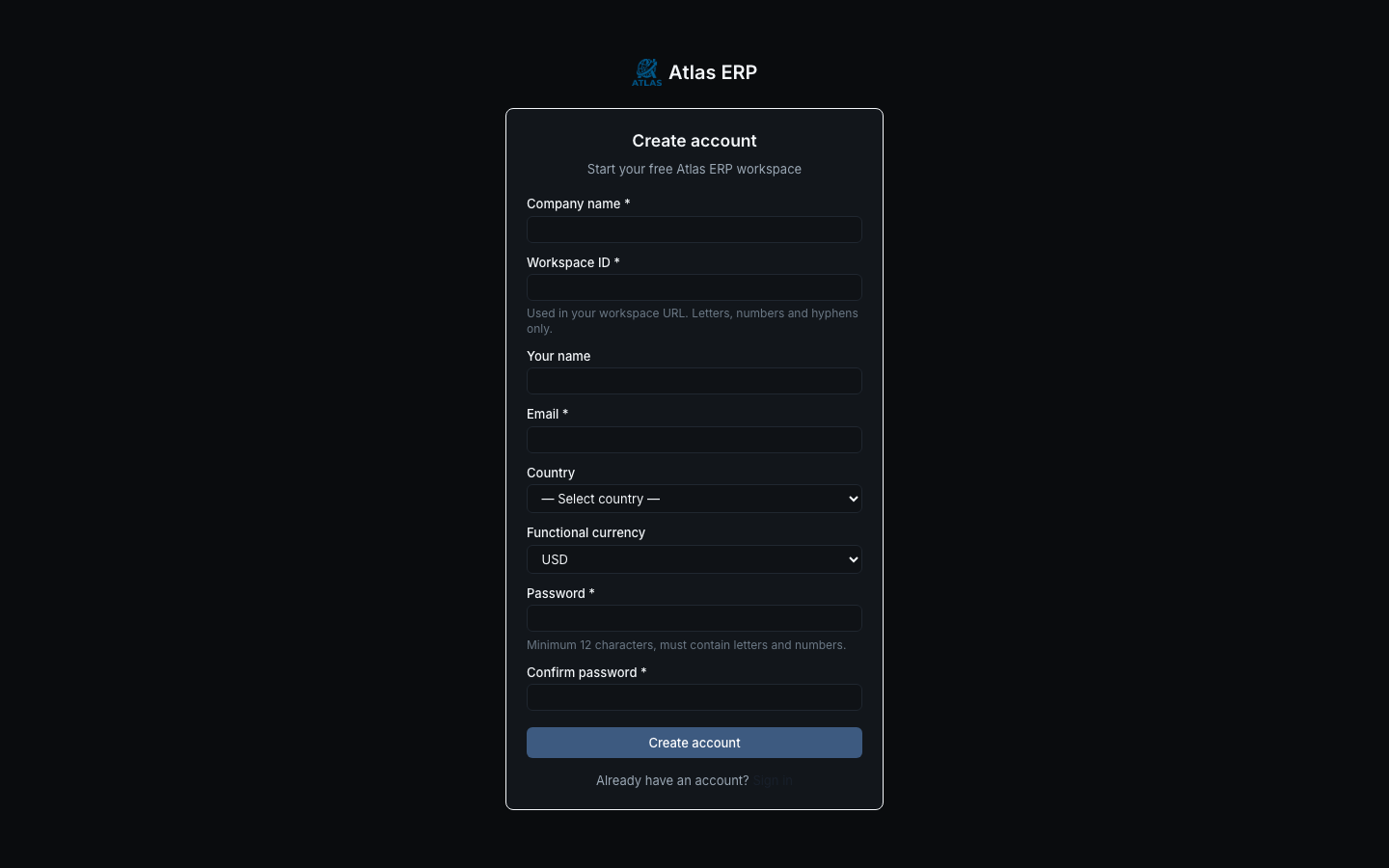
Workspace identifier — a unique name for your system (e.g., svitanok-ua). Your work area will be accessible at: svitanok-ua.atlas.local or in production atlas.io/svitanok-ua.
Step 2: Setup Wizard
After login, the system offers the Setup Wizard — four steps.
Step 2.1 — Country and Business Type
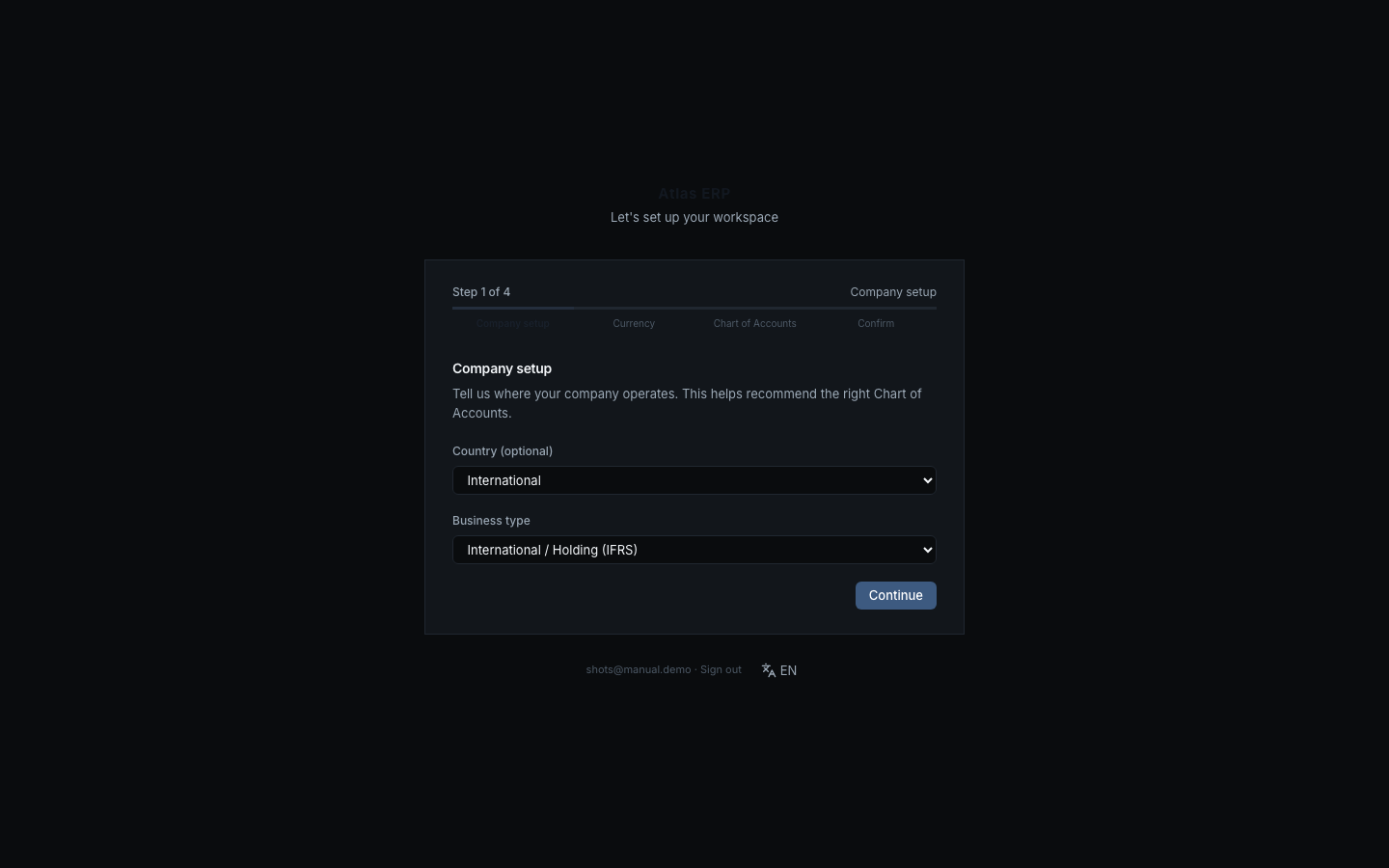
- Choose Country (already set from registration).
- Choose Business Type — for Ukraine this may be:
- LLC — general taxation system
- LLC — simplified tax
- Sole proprietor — group 3 or groups 1–2
- International (IFRS)
- Click "Next".
The system recommends a business type for the selected country, but you can choose another — the recommendation just simplifies the choice.
Step 2.2 — Functional Currency
- Enter or select your Currency (for Ukraine — UAH; for international companies — USD, EUR).
- Currency is locked forever — you cannot change it later.
- Click "Next".
The system remembers your choice and uses it for all financial reports. If you buy in dollars and sell in hryvnia — each operation is recorded in its own currency, but reports show balanced summaries in hryvnia.
Step 2.3 — Chart of Accounts
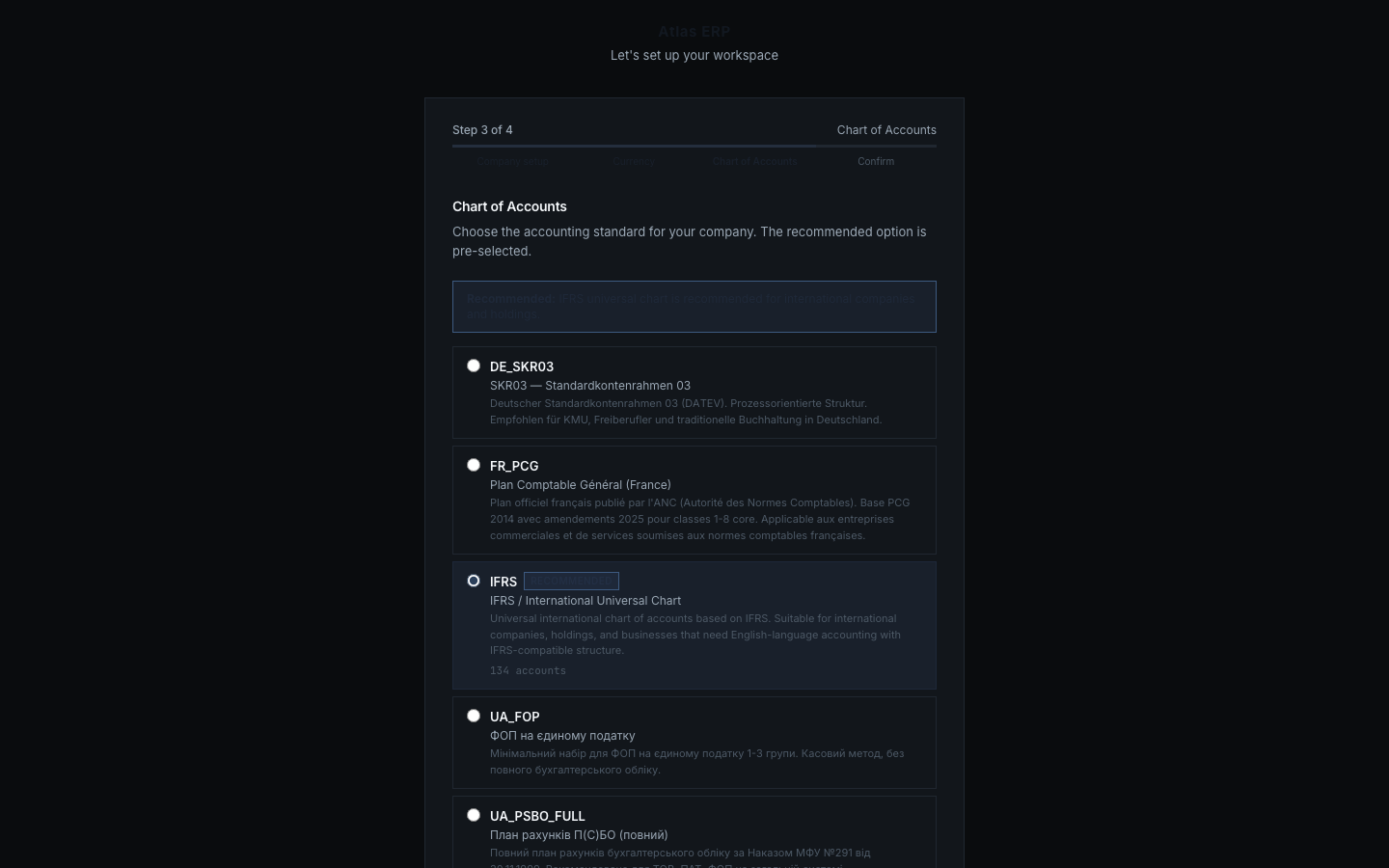
- The system suggests an Accounting Standard — for Ukraine, PSBO is recommended; for international, IFRS; for Germany, SKR03; for France, PCG.
- Each standard shows account count (e.g., "600 accounts").
- Click "Next" — the system imports the ready chart of accounts.
The chart of accounts locks when you post the first document or transaction. Until then you can change it. Once locked, you can add custom accounts, but the system standard does not change.
Step 2.4 — Review & Confirm
System shows final summary:
- Country
- Business type
- Currency
- Chart of accounts and size
Click "Complete Setup" — the system creates your workspace and redirects to dashboard.
Step 3: Workspace Dashboard
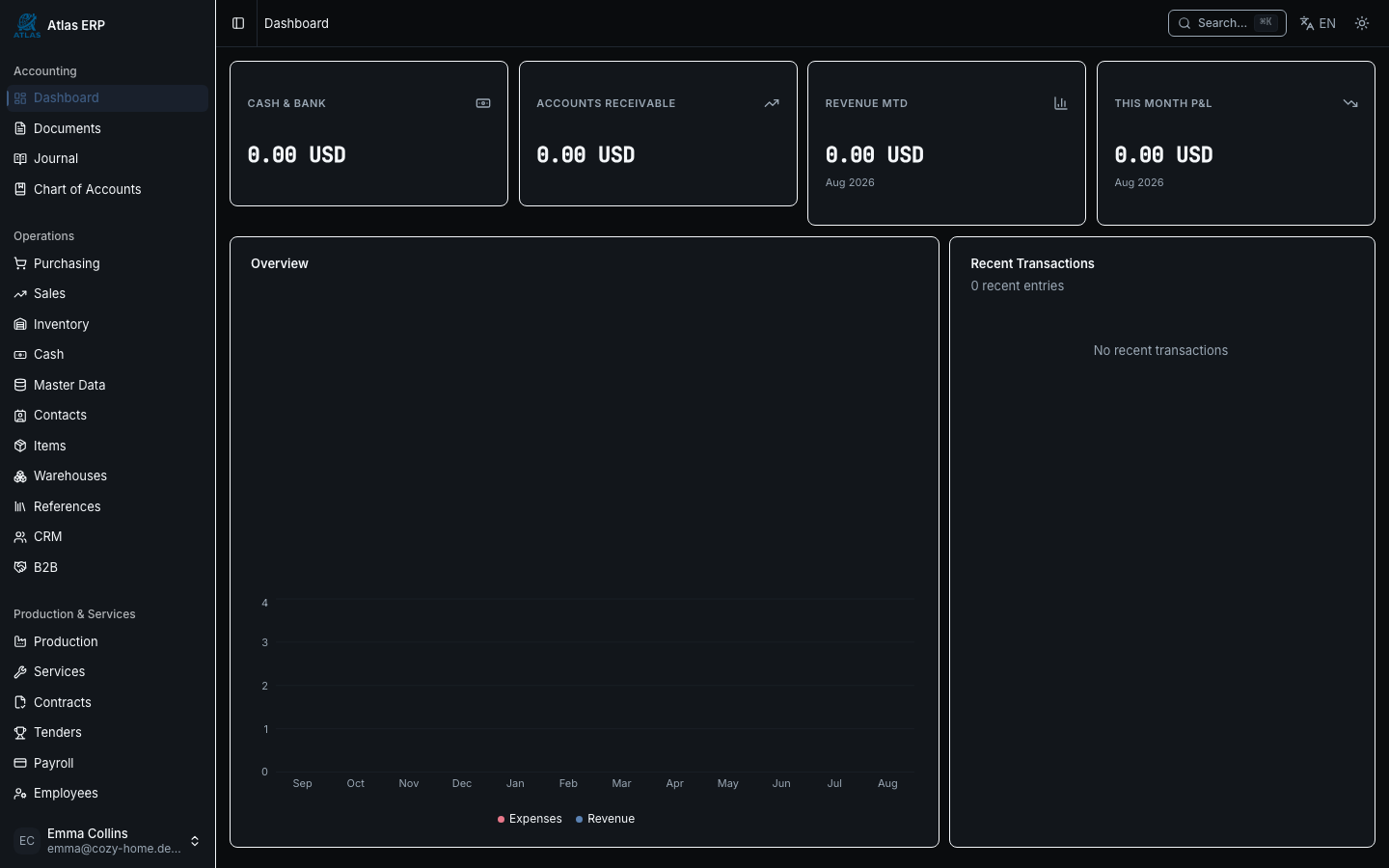
You land on the Dashboard (main screen). On the left — menu of sections:
- Sales — orders, invoices, payments
- Purchasing — vendor orders
- Inventory — items, balances, transfers
- Journal — all financial entries
- Reports — trial balance, P&L, balance sheet
- Settings — company, users, access rights
Step 4: Company Details
Go to Settings → Company and fill in master data:
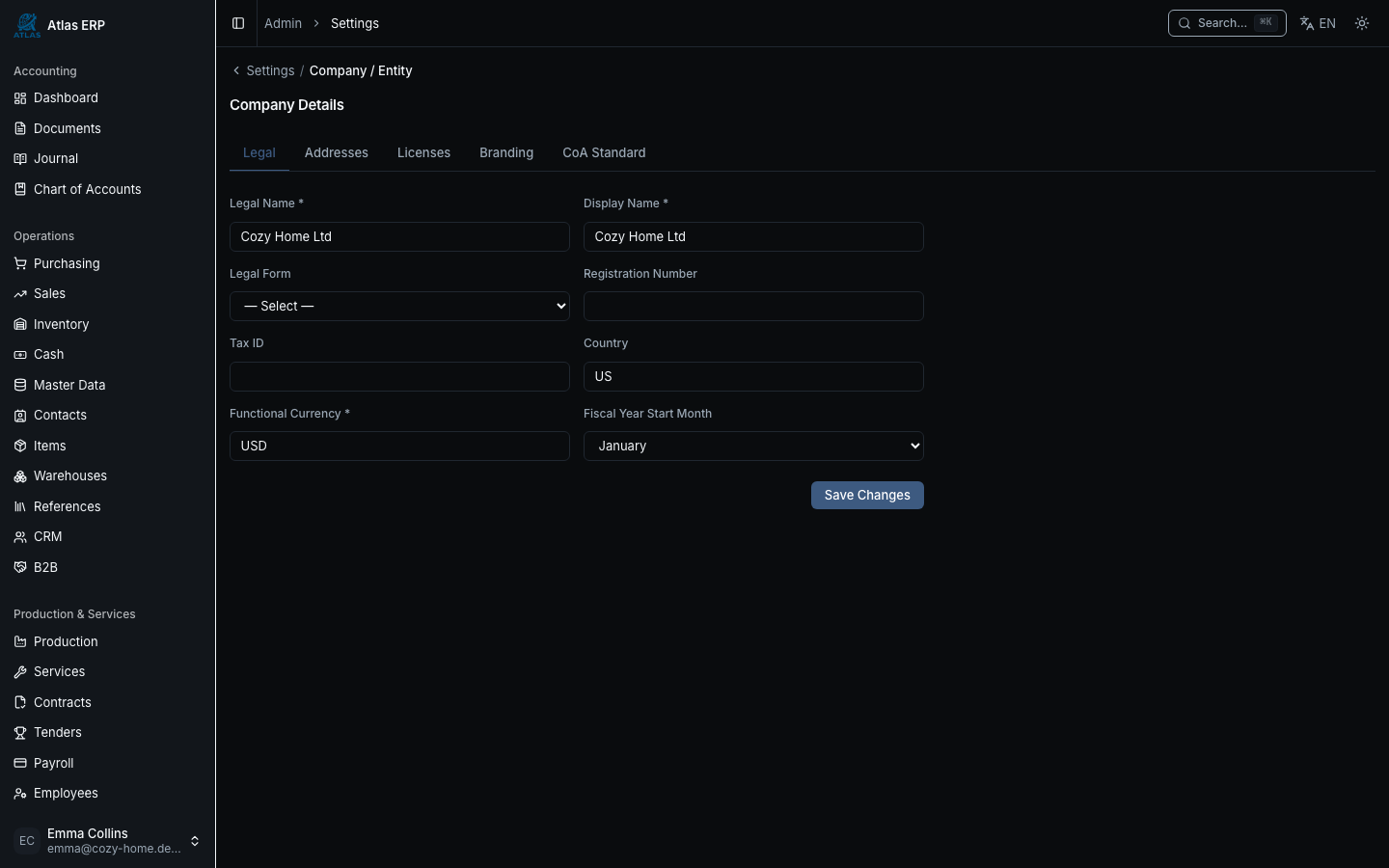
- Legal Name — as your company is registered.
- Tax ID — national identification number.
- Bank Accounts — add accounts for cash operations.
- Address and Contacts — for printouts and reports.
The main warehouse MAIN is created automatically on setup — no need to create manually.
Step 5: Contacts (Customers & Vendors)
Manually
Go to Settings → Contacts:
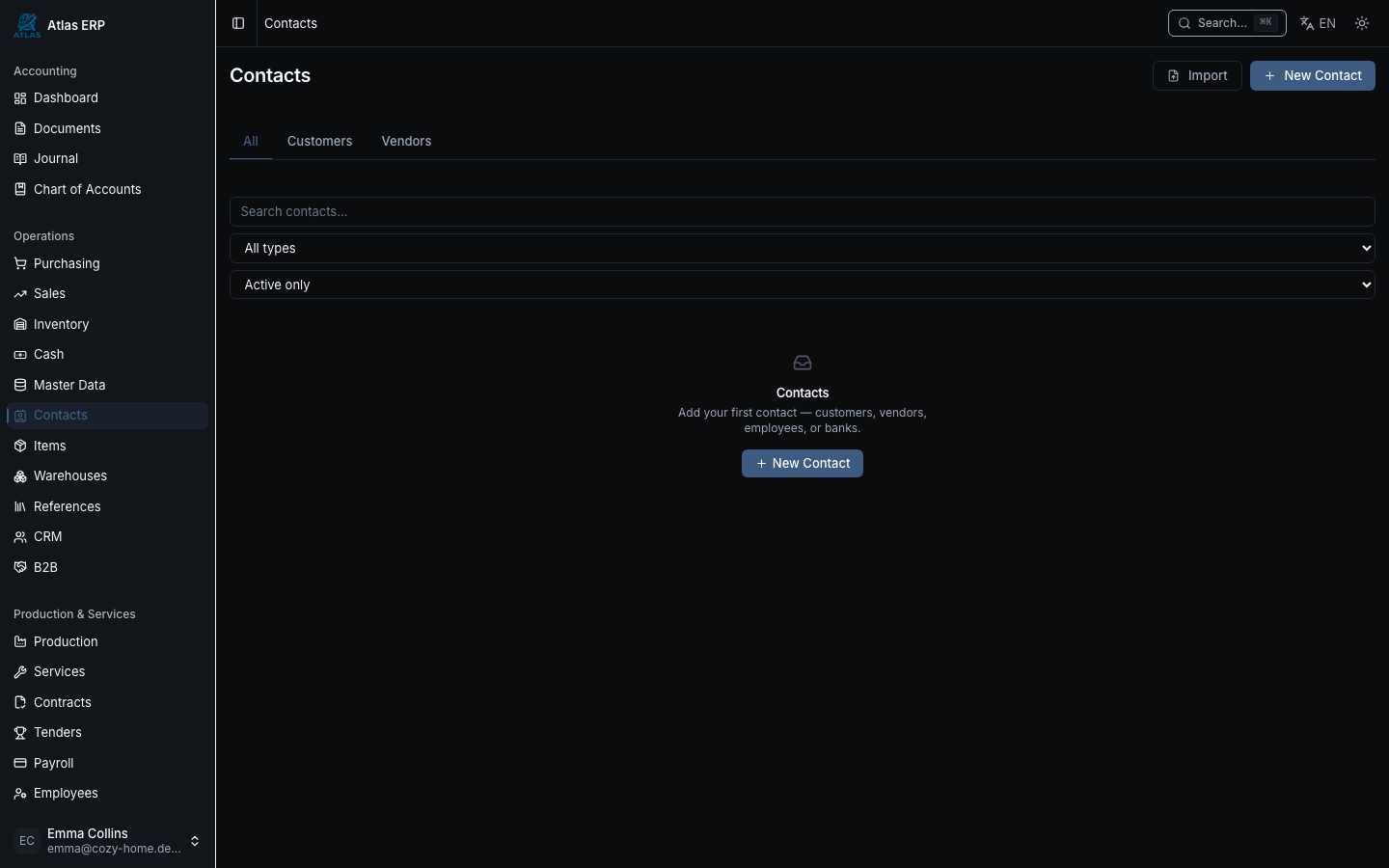
- Click "New Contact".
- Enter Name (e.g., "Svitanok LLC").
- Select Type — customer, vendor, or both.
- Add Contact details if needed.
- Click "Save".
Other fields (ID, bank accounts, payment terms) can be filled later or left blank.
Import from CSV
If you have a list of contacts in Excel:
- Click "Import" in the contacts list.
- Download the CSV template — the system shows a format.
- Fill your data in the template (name, type, email, phone).
- Upload the file back.
- System shows Preview — verify data is correct.
- Click "Import".
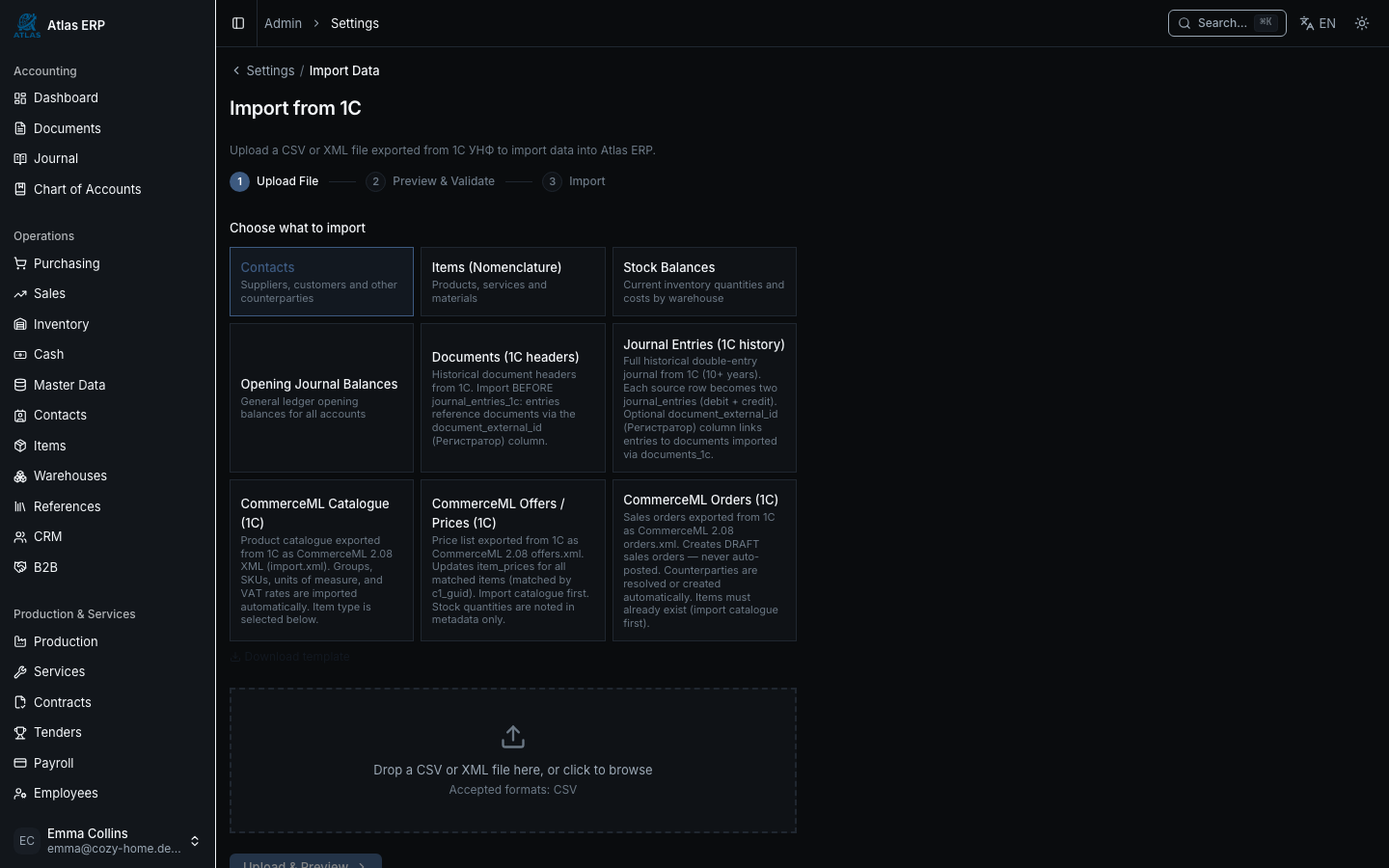
The system checks for duplicates by name and tax ID — no duplicates created.
Step 6: Items (Products & Services)
Go to Settings → Items:
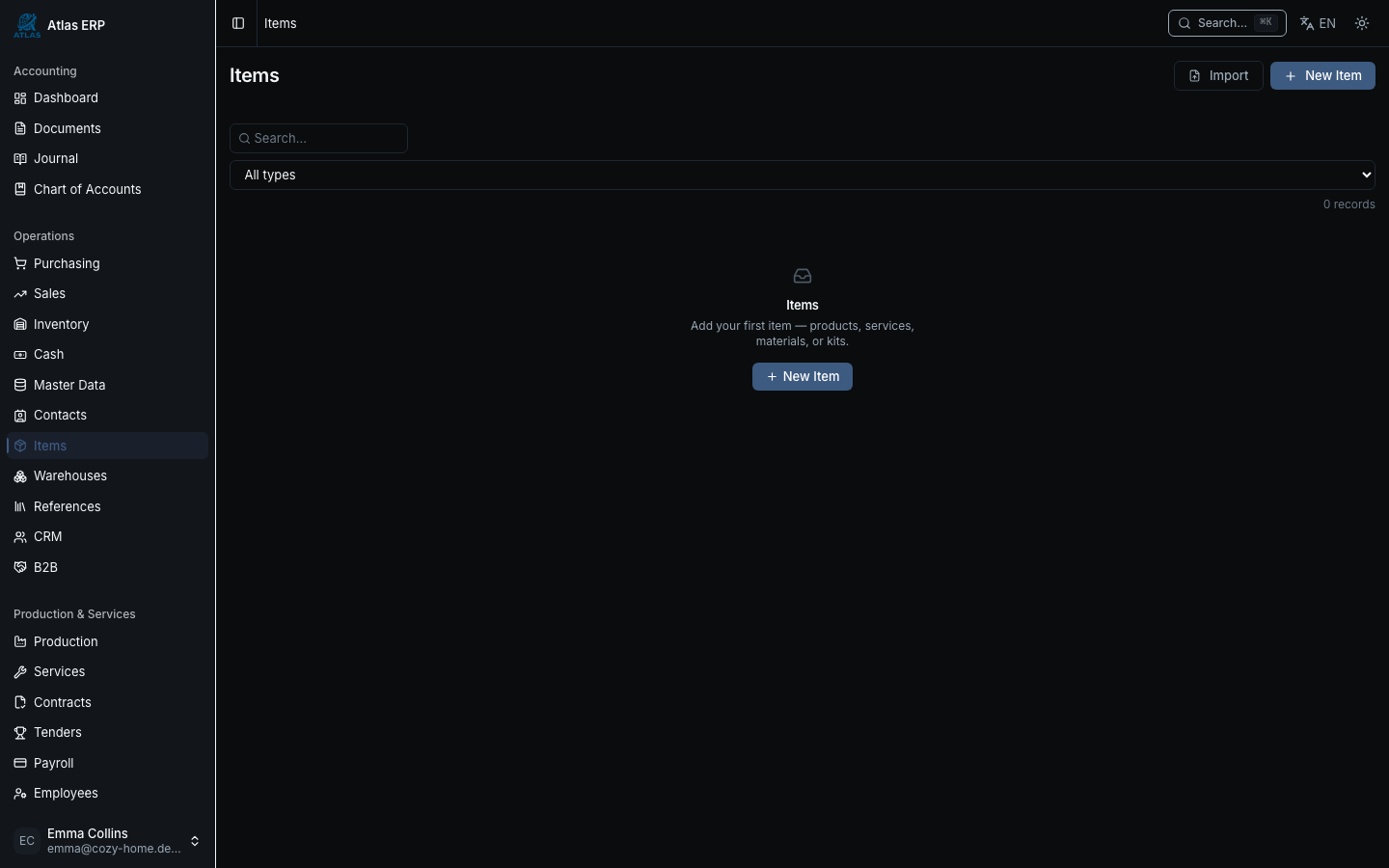
- Click "New Item".
- Enter Name (e.g., "Oak Doors Classic").
- Select Unit of Measure (piece, meter, kilogram, etc.).
- Specify Cost (selling or purchase price).
- Click "Save".
Prices are stored in Price Types (these are pricelists). The system auto-fills price when you select an item in documents.
Step 7: Warehouses
Go to Settings → Warehouses:
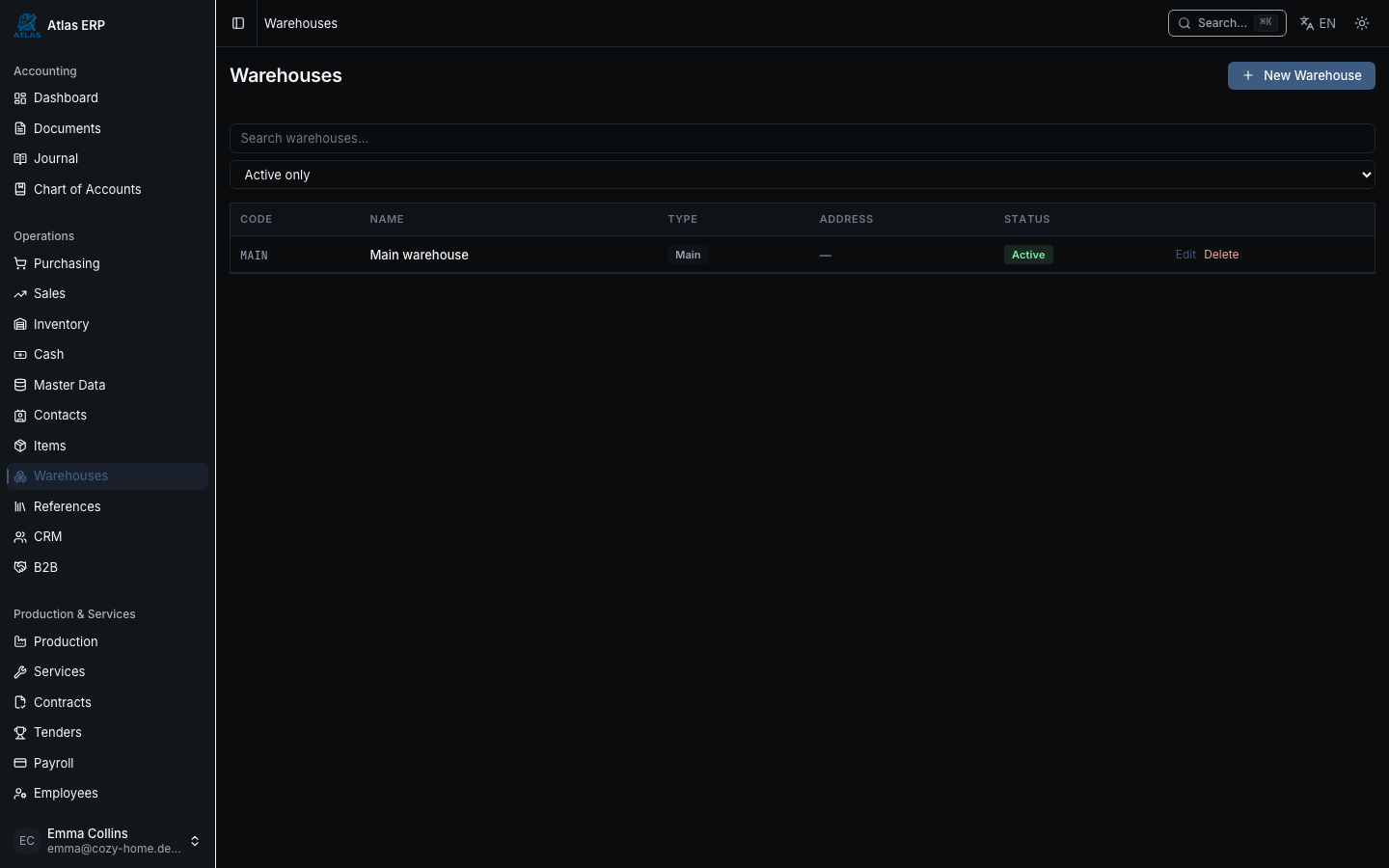
Main warehouse "MAIN" is created automatically — nothing to add. If you have multiple warehouses:
- Click "New Warehouse".
- Enter Name (e.g., "Warehouse #2").
- Provide Address.
- Click "Save".
Step 8: Taxes
Go to Settings → Taxes:
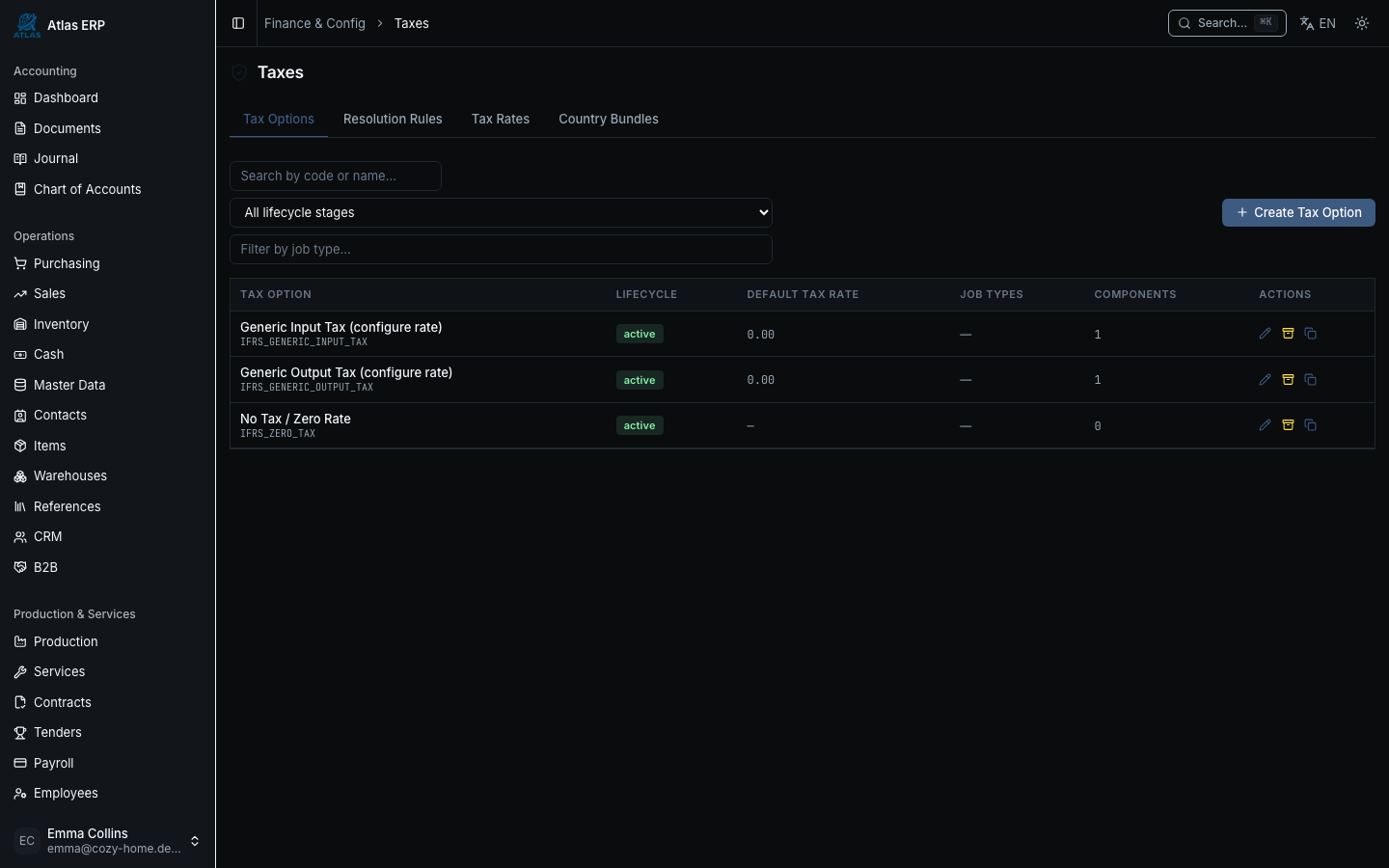
The system already pre-configured standard taxes for your country:
- Ukraine: VAT 20% (sales & purchases), 0% (exports).
- Germany: MwSt 19% (supplies), 7% (reduced), 0% (some services).
- France: TVA 20%, 10%, 5.5%, 2.1%.
Taxes can be edited or custom rates added if needed.
Step 9: First Entry — Share Capital
Go to Journal → Journal Entries:
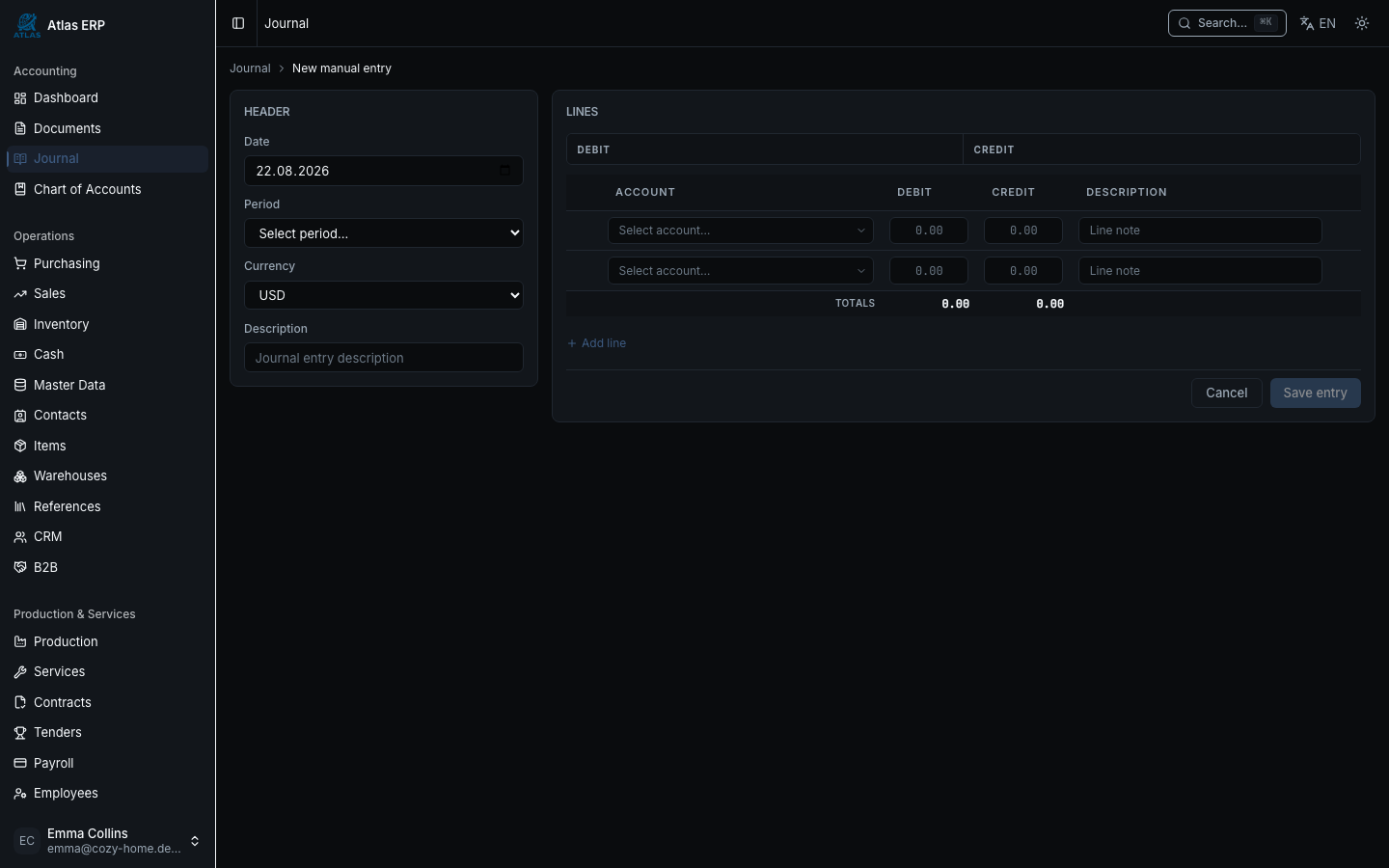
- Click "New Entry".
- Select date.
- Fill rows:
- Debit: Cash or Bank account — amount, e.g., 100,000 UAH
- Credit: Share Capital — amount 100,000 UAH
- System checks: debits = credits (otherwise entry won't post).
- Click "Post".
Share capital is the first line of the balance sheet. The system enforces balanced accounting.
Step 10: First Sale — Invoice
Go to Sales → Invoices → New Invoice:
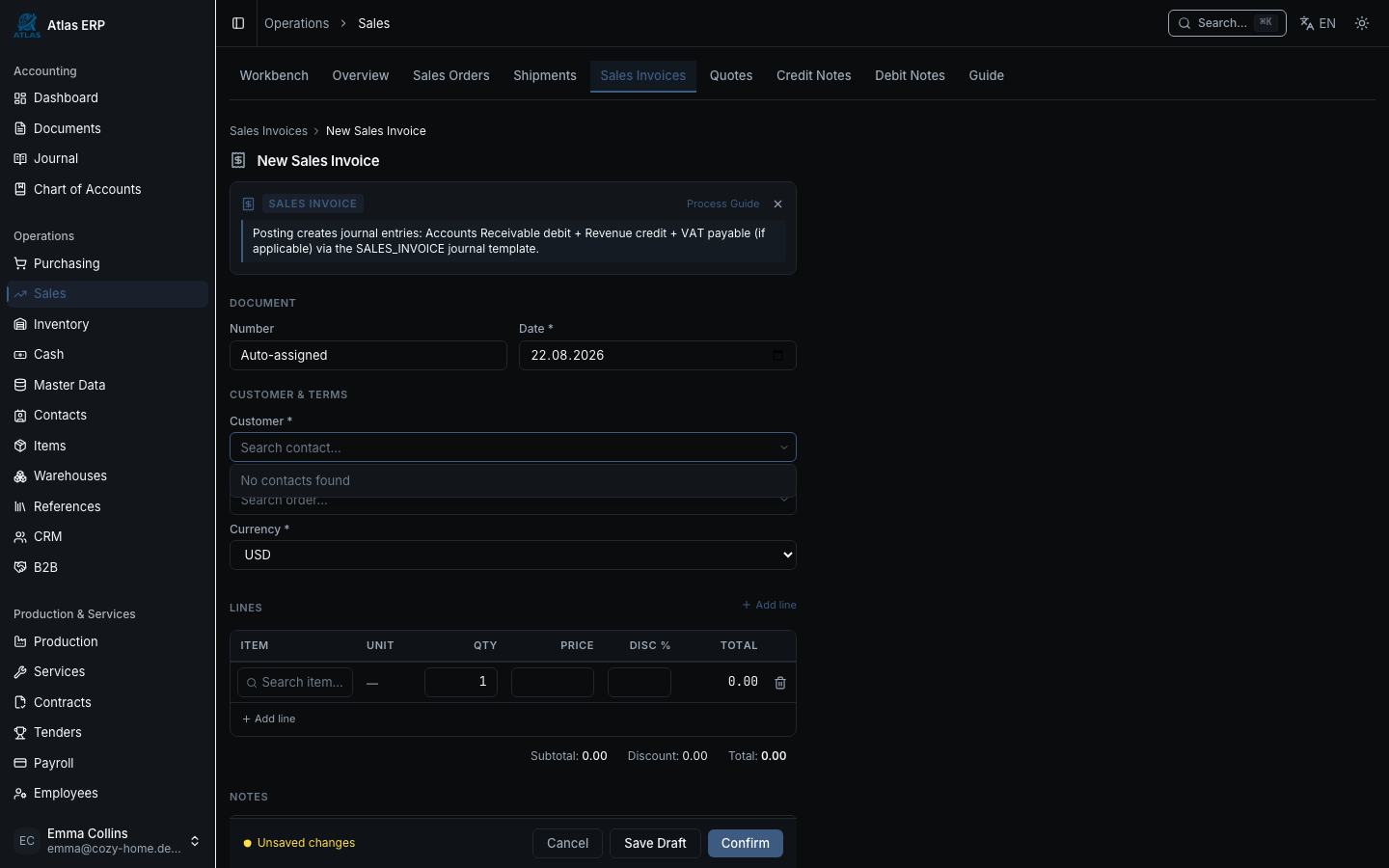
- Select Customer (contact you already created).
- Enter Invoice Date.
- Add Line Items:
- Item (e.g., "Oak Doors Classic")
- Quantity
- Price — system pulls from pricelist automatically
- System calculates total: quantity × price.
- Click "Post".
The system automatically creates entries:
- Debit: Accounts Receivable
- Credit: Revenue from Sales
- Credit: VAT (if applicable)
Step 11: First Reports
Go to Reports:
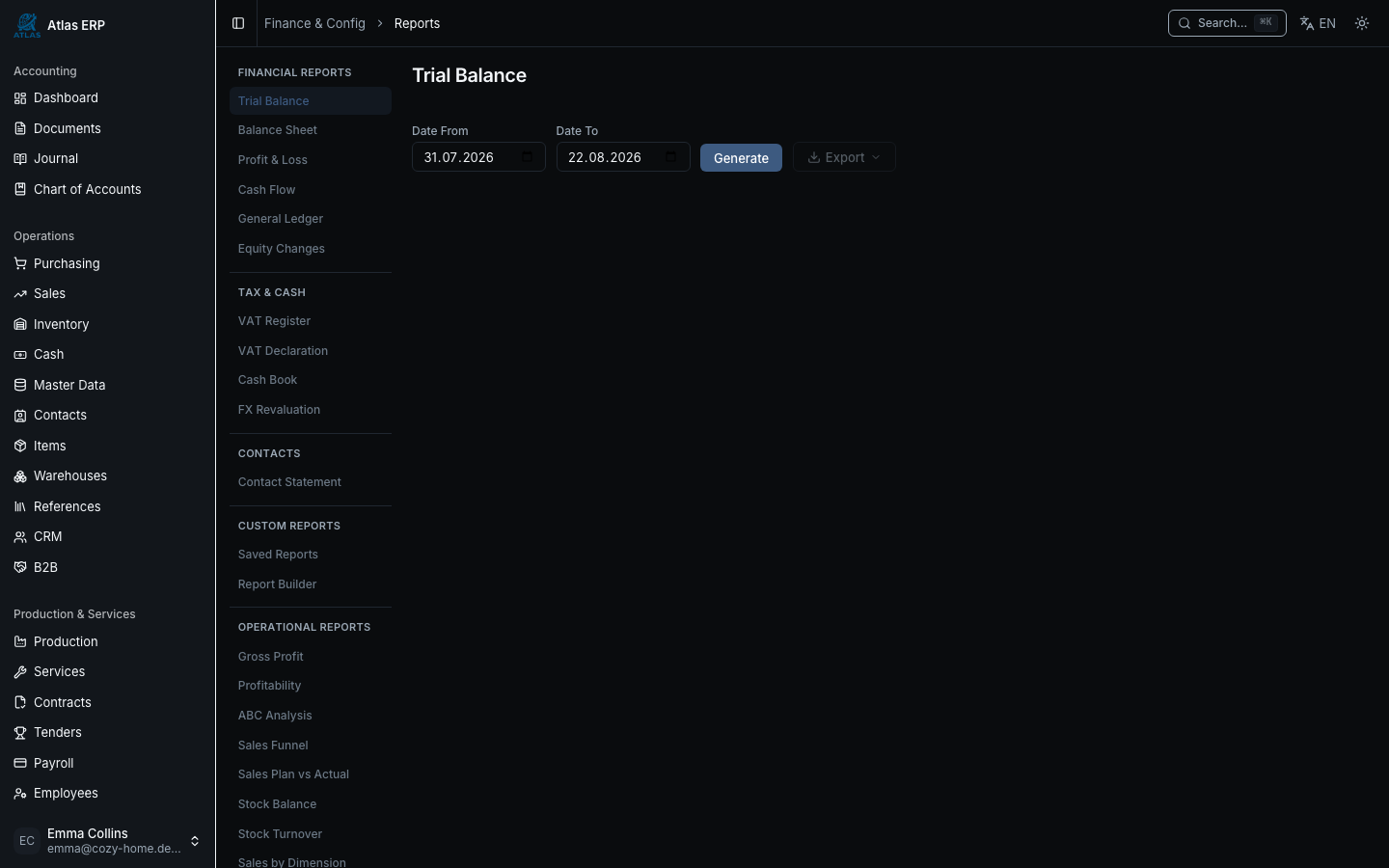
The system shows three main reports:
- Trial Balance — all accounts with debits, credits, balances. Debits must equal credits.
- Balance Sheet (Statement of Financial Position) — assets, liabilities, equity. Assets = Liabilities + Equity.
- Profit & Loss (P&L) — revenue minus expenses.
All reports are calculated automatically from the journal. If you posted share capital and an invoice — reports are ready and balanced.
Summary: To First Report in Minutes
| Step | Action | Time |
|---|---|---|
| 1 | Registration | 2 min |
| 2 | Setup Wizard (country, currency, chart of accounts) | 5 min |
| 3 | Company Details | 3 min |
| 4 | Contacts (manual or import) | 5 min |
| 5 | Items (products) | 5 min |
| 6 | Taxes (already configured) | 1 min |
| 7 | Share Capital (entry) | 3 min |
| 8 | First Invoice (document) | 5 min |
| 9 | First Reports (auto-generated) | 1 min |
| Total | ~30 min |
From login to first report — half an hour. The system guides you every step.