Module "Sales"
Module "Sales"
Purpose
The Sales module covers the entire path from first customer contact to recording payment in your account. Each step is recorded as a separate document, documents are linked in a chain, and the system always shows which stage each deal is stuck at.
Sales Workbench
The first screen of the Sales module — the Sales Workbench. You see several things at once:
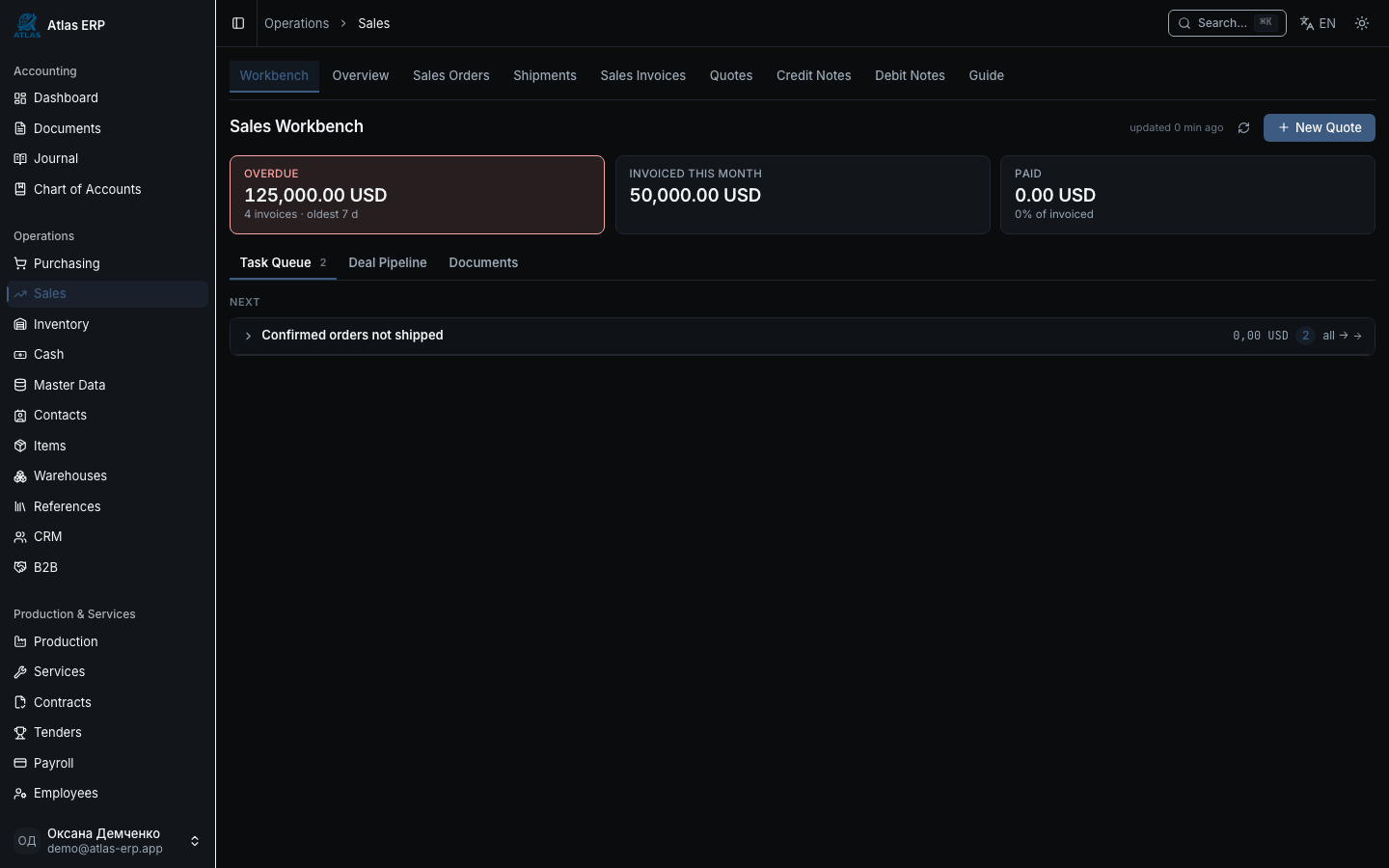
- Monthly Metrics — how much invoiced, how much paid, how much overdue.
- Queue Documents — where exactly each document is stuck: "Quote without reply > 3 days", "Confirmed orders without shipment", "Shipped—invoice not issued", "Overdue invoices", "Quotes with expiring deadline". Each queue row is a clickable link to the specific document.
- Dashboard Statistics — KPI: invoiced, paid, overdue for the month.
Workbench Tabs
The workbench has four main tabs:
- Queue — rows stuck at stages (main tab).
- Pipeline — kanban board with deal stages & cards (see §Deal Pipeline below).
- Documents — feed of all sales documents with filters (see §Document Feed below).
- Guide — interactive map of the entire process (see below).
Main Scenarios
Scenario 1: Quote → Order → Shipment → Invoice → Payment
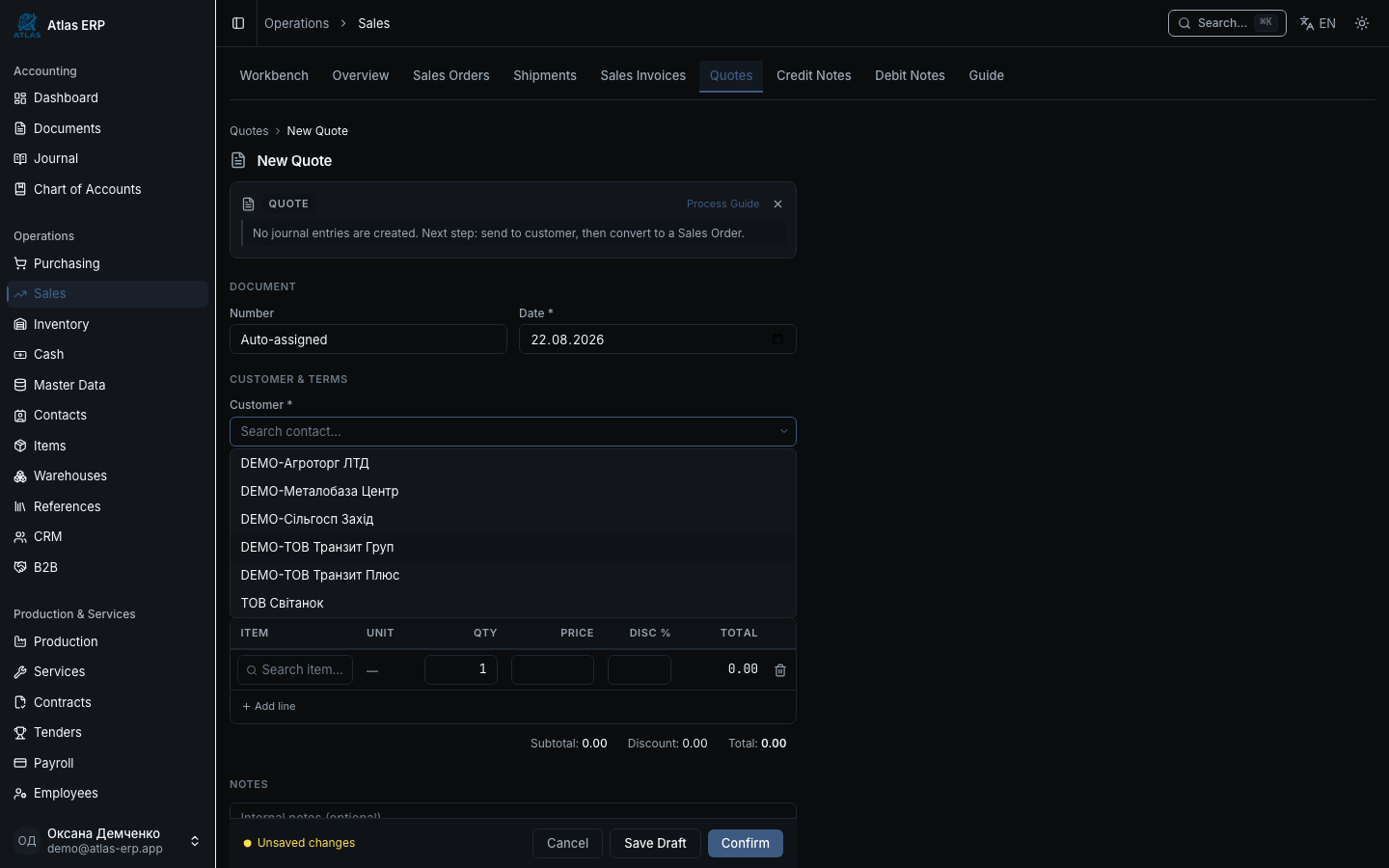
Go to Sales → Quotes → New Quote. Fill customer, line items, currency, valid-until date. Click "Save" — document in "Draft" status.
When quote is sent to customer — click "Mark as Sent". Status → "Sent".
Auto-Price from Pricelist. When you select an item in a line, the system auto-fills price from price type (pricelist). A Price Context Banner appears showing which price was applied (contract, customer group, default). Change quantity — subtotal recalculates instantly. Manual price override always possible — field is editable directly.
Received approval — click "Accept". System automatically creates Customer Order with quote lines and links it.
In the order, click "Confirm". Stock is reserved, available balance decreases.
Click "Create Shipment". Draft shipment opens with pre-filled order lines. Verify, adjust quantity if needed, click "Post". Goods deducted from stock, journal entry appears per SHIPMENT_COGS template.
Return to order and click "Create Invoice". Invoice-Formal draft opens. Click "Post" — entries created: Dr Accounts Receivable / Cr Revenue (+VAT if applicable).
Funds received in account — record them in Cash & Bank (cash receipt or bank statement). Post the document.
In the same section or on the invoice card, click "Allocate Payment" — link the received payment to the invoice. Invoice balance becomes zero, status changes to "Paid". Chain closed.
Each of steps 3–8 appears in ChainBar — horizontal step panel at the top of any document. Blue button = next recommended action.
Scenario 2: Invoice or Shipment First (Reverse Direction)
If invoice or shipment is created without customer order, two buttons appear on their card:
- "Create Order from This" — system fills all order fields from the orphan document.
- "Link Existing Order" — if order already exists, just link; data entered once, entries not duplicated.
Scenario 3: Return or Adjustment (Credit Note / Debit Note)
Open a posted invoice, click "Credit Note" or "Debit Note":
- Credit Note — reduces debt or records return. Must select "Reason Code" (e.g., "Return" or "Quality Issue"). System auto-offsets against source invoice.
- Debit Note — increases debt (additional charge). Also requires reason code.
If approval rules are enabled in settings, document goes to "Awaiting Approval" status — cannot be posted or deleted until approved. Approval queue available in Approvals section.
Payment Reminders
If an invoice is overdue or unpaid, two ways to remind customer:
Manual "Remind" Button
On invoice page, click "Remind":
- System sends email reminder to customer with current balance.
- Letter recorded in invoice's event log.
Automatic Dunning Ladder
Click on invoice "Configure Reminders" or go to Settings → Reminders:
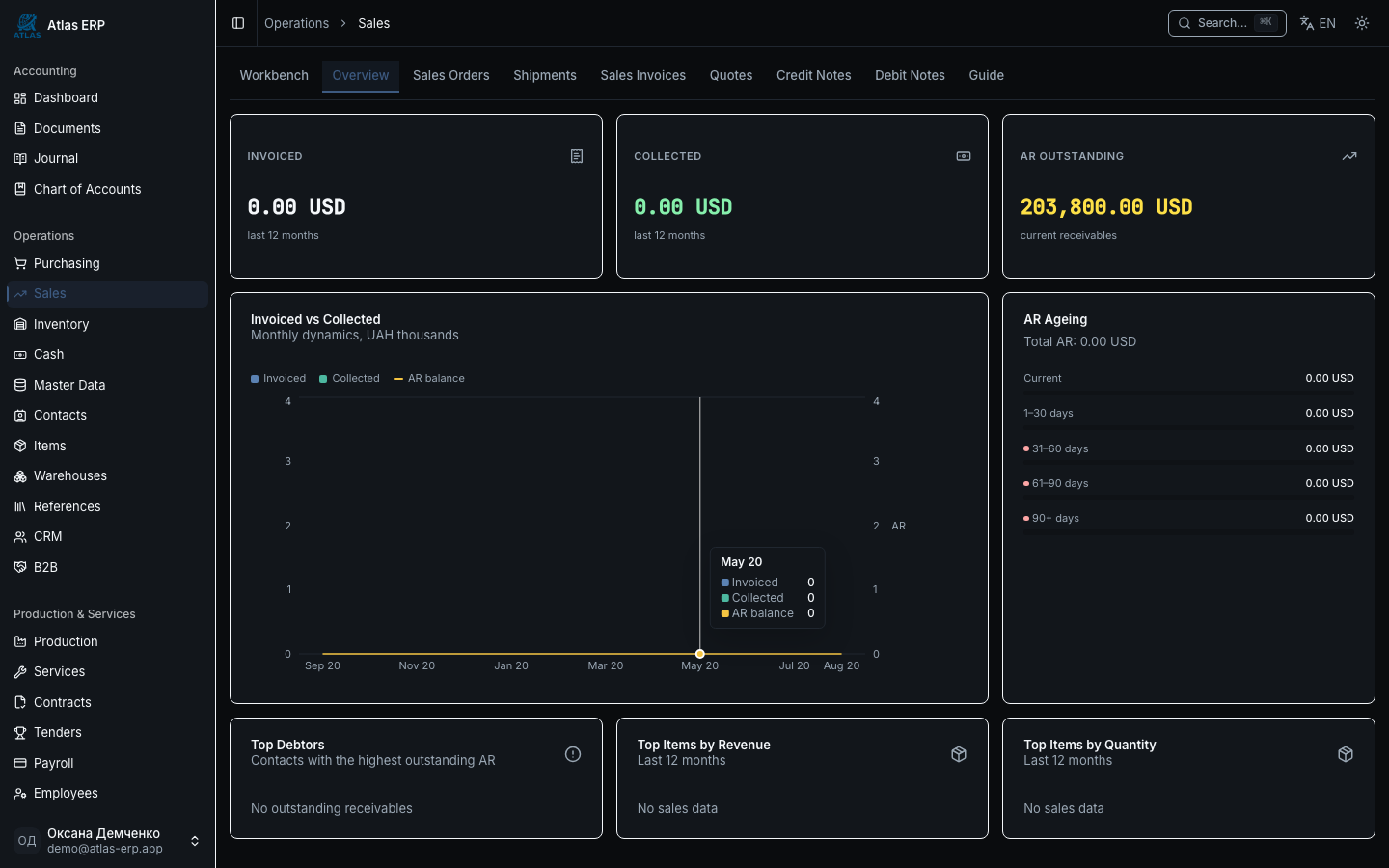
- Specify Days to First Reminder (e.g., +3 days after due date).
- Add Next Levels (+7, +14 days).
- At each level, system auto-sends email to customer.
Auto-reminders disabled by default — enable explicitly. Approval rule (if exists) requires confirmation before first reminder.
Document Feed
The Documents tab on the workbench shows a unified feed of all sales documents:
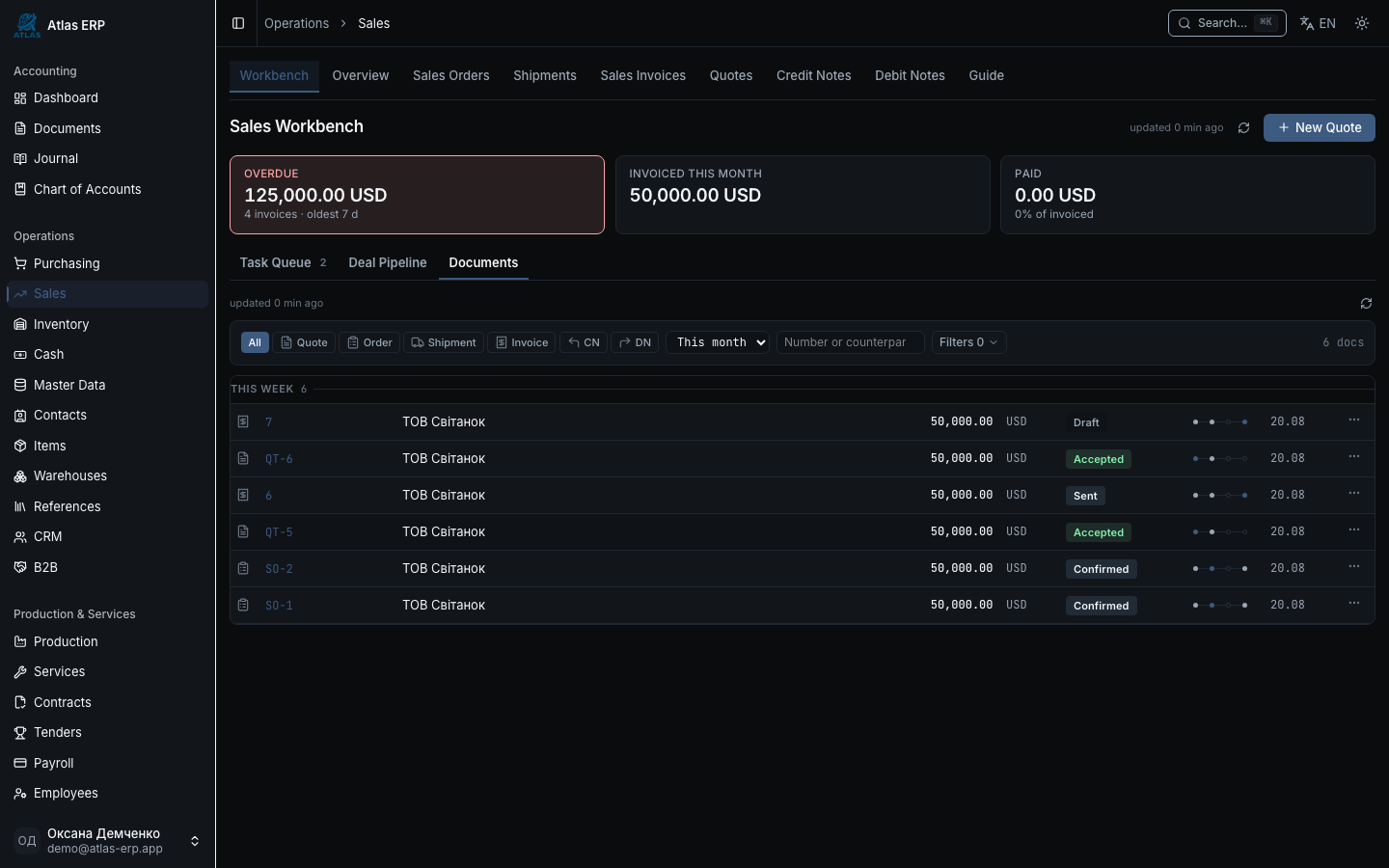
- Filters by type (Quote, Order, Shipment, Invoice, Credit Note, Debit Note), period, status, customer.
- Search by number or customer name.
- Grouping by freshness: today, yesterday, this week, earlier.
- Micro-dots near each document show its chain — you immediately see where it broke.
One look — and you understand what's happening in sales.
Master Data Hub
Click Settings → Master Data:
The hub collects all reference books in one place:
- Contacts — customers, vendors, banks.
- Items — products & services.
- Warehouses — storage locations.
- Price Types — pricelists for customers, vendors, groups.
- Company Details — legal name, tax ID, bank accounts.
One click from the hub to any reference.
Deal Pipeline (CRM)
The Pipeline tab on the workbench shows a kanban board of deals:
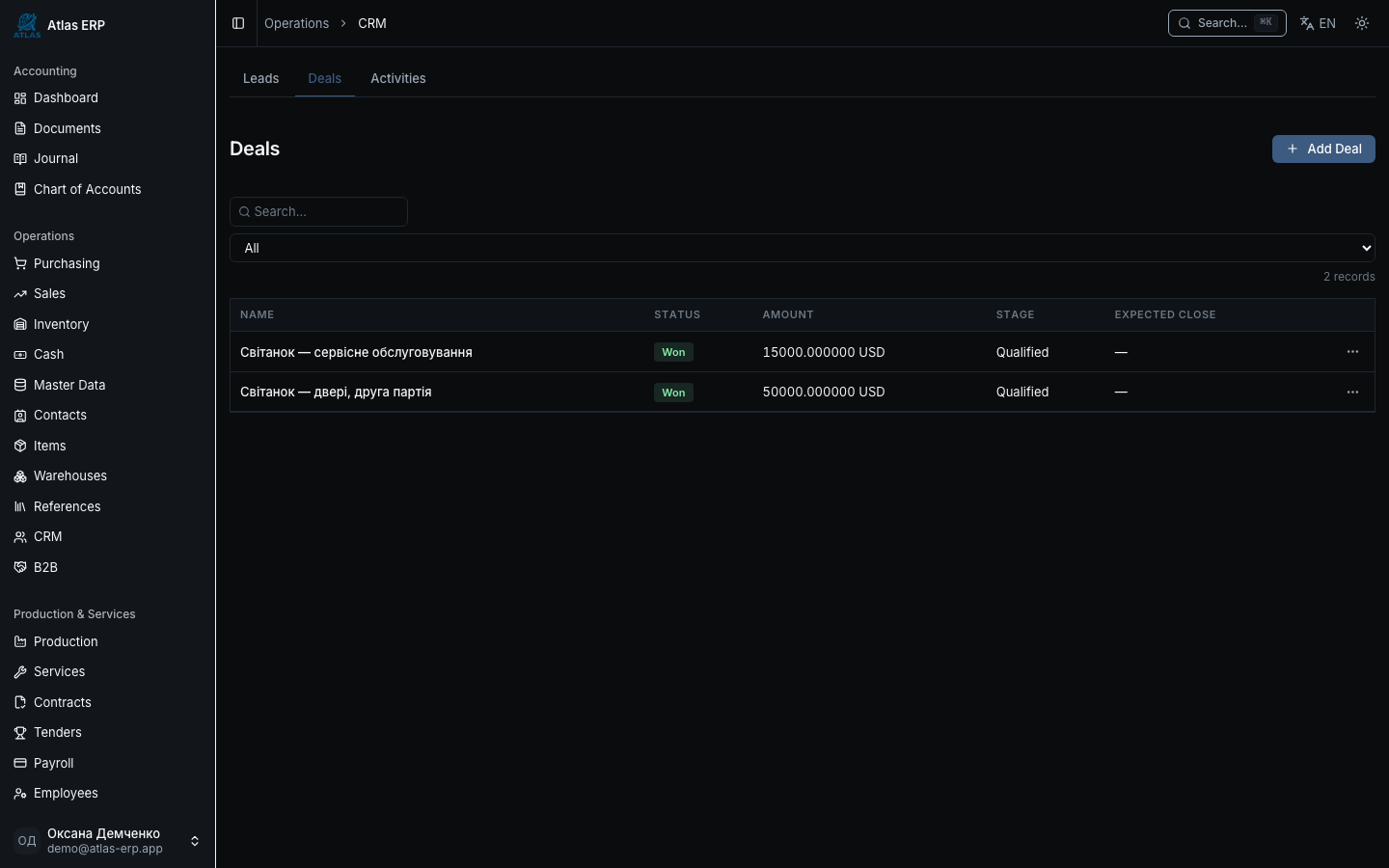
How It Works
- Each Stage — a column (e.g., "Negotiation", "Proposal", "Agreed", "Won").
- Deal Card — name, amount in functional currency, expected close date.
- Drag-and-drop between columns — changes deal stage.
- Closing:
- Mark as Won — deal closed, remains visible in history.
- Mark as Lost — requires reason selected from list.
Amounts by Stage
Below each stage name, total sum of all deals in that stage is shown (in tenant's functional currency).
Optional Module
Pipeline enabled by permission sales.pipeline in access matrix. Without it, Pipeline tab not shown on dashboard.
Sales Guide
On the workbench, click the Guide tab:
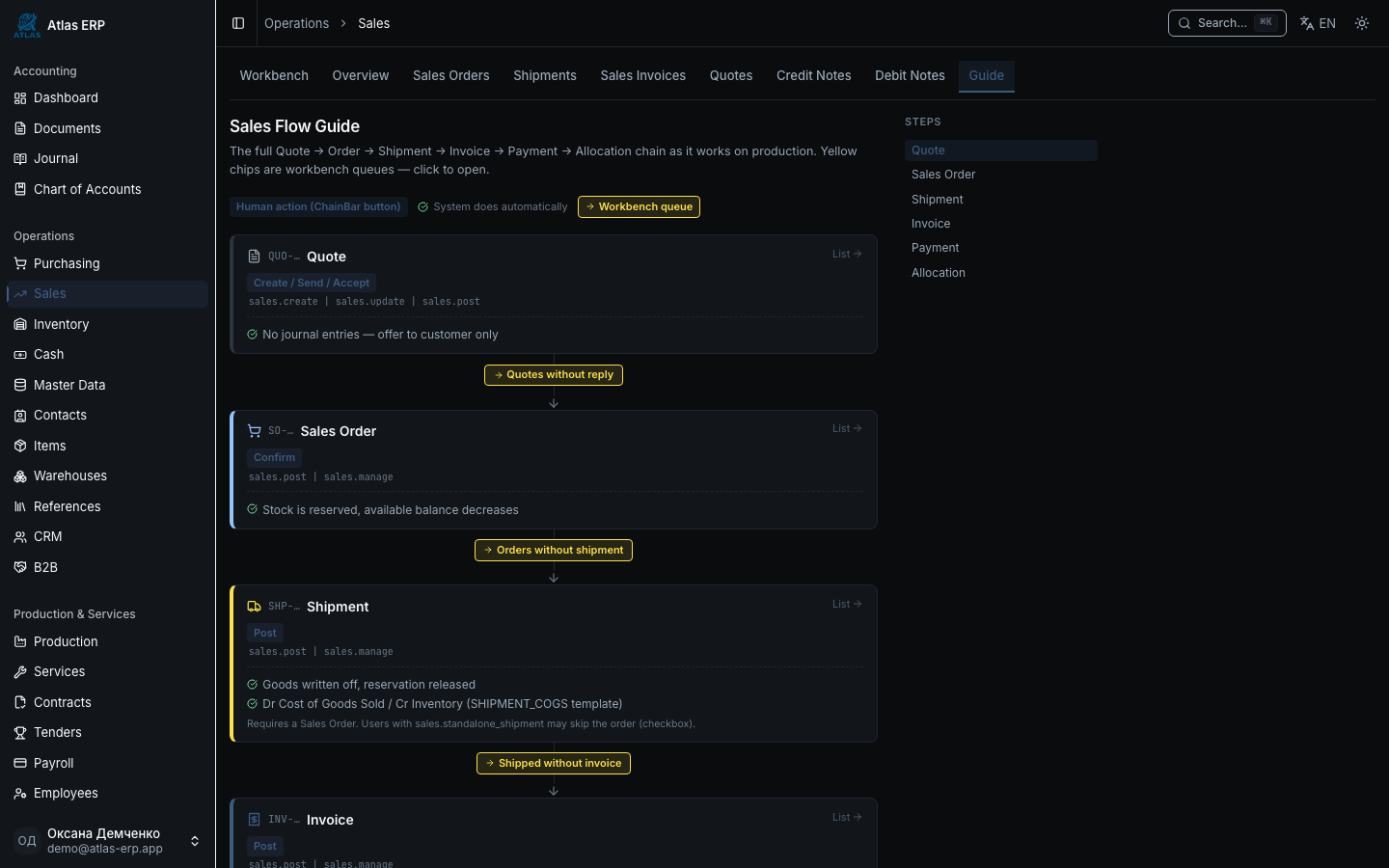
The system shows an interactive map of the entire sales flow:
- Quote — how to create, send, accept, get the chain.
- Order — how to confirm, reserve stock.
- Shipment — how to post, deduct from warehouse.
- Invoice — how to post, trigger accounts receivable.
- Payment — how to record & allocate to invoice.
- Returns — how to create credit note with return.
- Reminders — "Remind" button + automatic ladder.
- Deal Pipeline — kanban, how it works, how to close deals.
- ChainBar — how to use the step panel on a document.
- Access Matrix — who sees what and what they can do: view amounts, send reminders, etc.
For someone new to the team, this is the complete map of the sales process.
Tips
Check credit limit. When confirming an order, the system shows customer's current debt, limit, and available balance. If order exceeds limit — warning appears about credit limit exceeded.
Use "Shipped—Invoice Not Issued" queue. Most common way to lose revenue: goods shipped but invoice never issued. This queue on the workbench shows these situations immediately. See overdue order without invoice — create invoice with one click from queue.
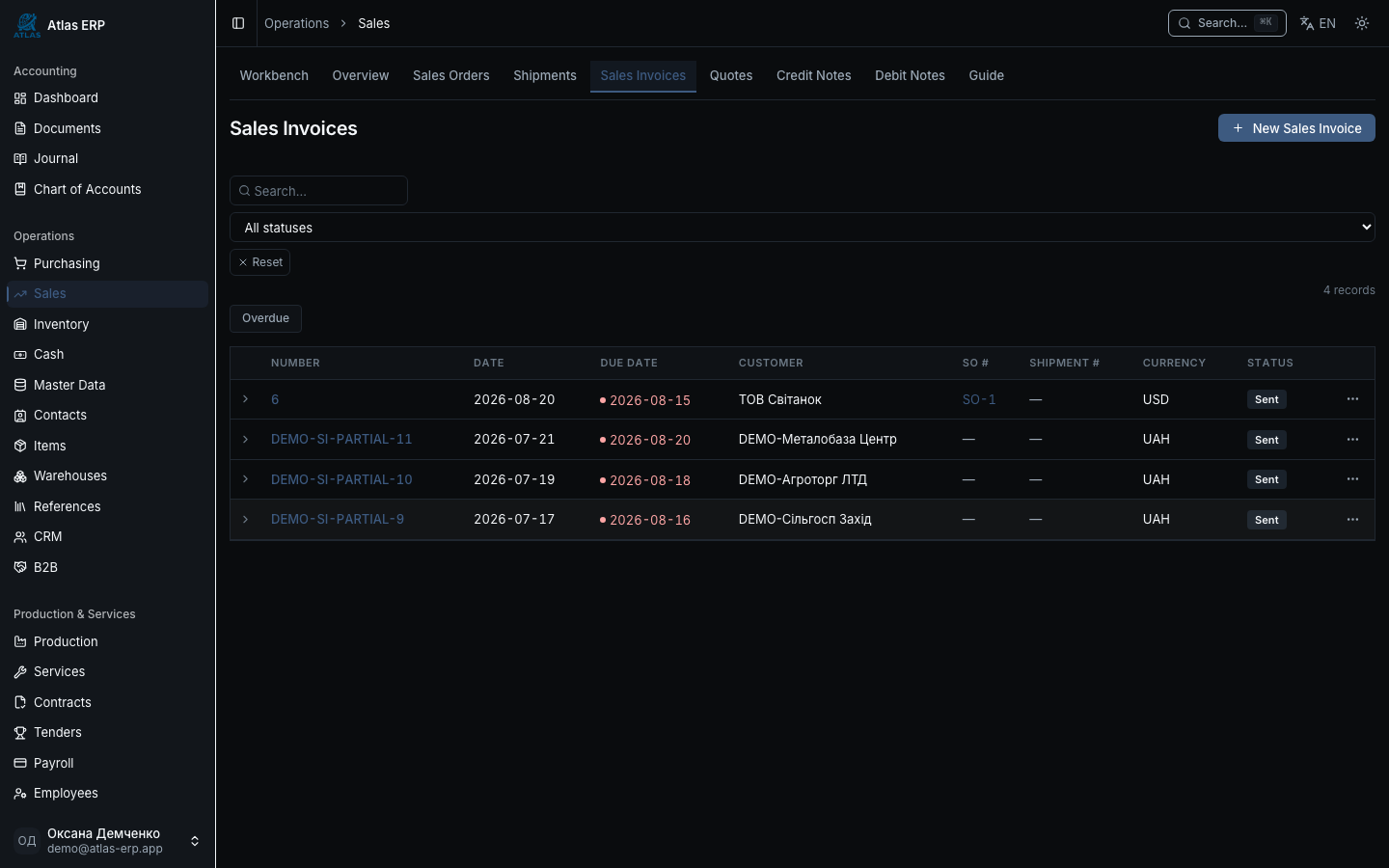
Filter invoices by "Overdue" status. For AR work, use "Overdue Invoices" filter — available on workbench and in documents feed. Click "Overdue" chip — system instantly filters the list.
ChainBar always shows deal state. Even if you enter a document from elsewhere — one glance at the step panel tells you what's done and what's left to do.